
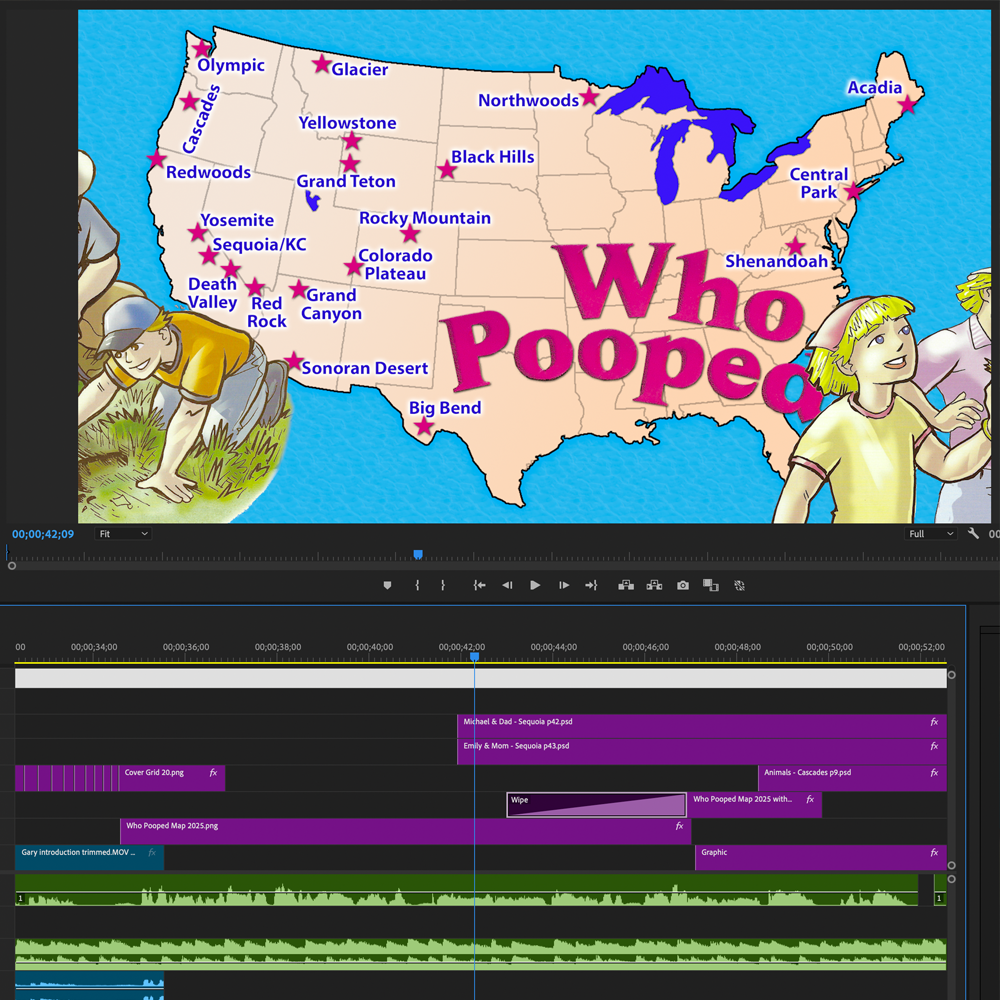
Video trailers are a big thing for movies. In my opinion, there aren’t nearly enough for books. To that end, I’ve created a new trailer for the Who Pooped series.
My objectives were to show what the books were about, where the various editions are set, and what’s between the covers. And since it’s ultimately about selling books, I also added a short section at the end talking about the new free Parent/Teacher Idea Book that I put out earlier this month.
I created a trailer for the Yellowstone edition years ago using iMovie (and wrote a blog post about it). This time, I wanted to do something different. Add a little more “me” by narrating it. Make it a little bit more produced.
So this time, I used Adobe Premier Pro as my primary production tool and did the audio editing in Adobe Audition.
The first step in the production was to sketch out a quick timeline and storyline. I recorded rough narration to get a feeling for timing, and then started pulling together all of the pieces I’d need. This involved taking a lot of scanned pages from the books and extracting the elements that I wanted to use in the video.
Once I had all of the elements placed on my timeline, along with backgrounds where necessary, it was time to stitch everything together with video effects. Today’s viewers have pretty high expectations and want something happening on the screen, not just a narrated slide show.
Once the flow of the video looked good, I went back and edited the narration to fit, which involved re-recording parts of it. If you do this, make sure you leave the microphone and the rest of the sound booth set up exactly the way you did it the first time so the transitions are seamless.
Getting close? Yes, but there’s still more to do!
The next step was to add background music and sound effects. Luckily, there are a lot of sound libraries where you can license music inexpensively, or even get it free with a subscription. This is important because YouTube takes copyright violation very seriously. No matter how much you like that new Taylor Swift song, if you use it in your book trailer, it’ll be taken down before it even goes public.
Maybe it’s just because I’m not a video editing professional, but I find that every single time I create a video, I run the export to make my MP4 and then find a problem. *Sigh* This time, I only had to do it twice. Not bad!
Finally, it’s time to upload the video to YouTube. I may need to go back later and do vertical (portrait) version as a short to post on Instagram, Facebook, and so forth, but I went traditional with this one. It’s horizontal (landscape) like most of the stuff us old farts produce.
So I uploaded the video and picked a keyframe. I considered doing an end screen, but I don’t have that much content to link to. Instead, I popped in a card that linked to the video of me reading Who Pooped to a couple of porcupines. It’s a fun video I recorded at Yellowstone Wildlife Sanctuary for a KOA Care Camps virtual event, and it’s gotten more views than anything else I’ve ever put on YouTube.
Once that was all set, I went in to add the subtitles. Closed captioning is very important to me, and I’ve spent a long time working in the field of accessibility for deaf people, including writing three books about captioning—and even getting some patents along the way.
The auto-generated YouTube captions have gotten better, but they still stink. If you are deaf, or hard-of-hearing, or just like watching videos with the sound off, you know what I’m talking about. I do my captioning by hand to make sure everything is absolutely right.
The end result is the video I linked to at the the beginning of this post. I hope you enjoy it! And in case you’re interested in that video with the porcupines, I’ll put that one here too:
 Gary D. Robson